IPTV on Firestick: The Complete Setup Guide You Actually Need
Let me be honest with you — the first time I set up IPTV on Firestick, I spent way too long figuring out things that should have taken 10 minutes.
There’s a lot of confusing information out there. Some guides are outdated. Others skip half the steps and assume you already know what you’re doing. So I wanted to write something different — a guide that actually walks you through everything, in plain English, from start to finish.
By the end of this, you’ll have IPTV running on your Firestick. No guesswork, no frustration.
First Things First — Why Firestick Is Perfect for IPTV
If you’re wondering whether your Fire TV Stick is a good device for IPTV, the short answer is yes — it’s honestly one of the best options out there.
Here’s why people love this combination:
It’s cheap. A Firestick costs around $30–50, which is nothing compared to buying a new smart TV. You plug it into any TV with an HDMI port and you’re done.
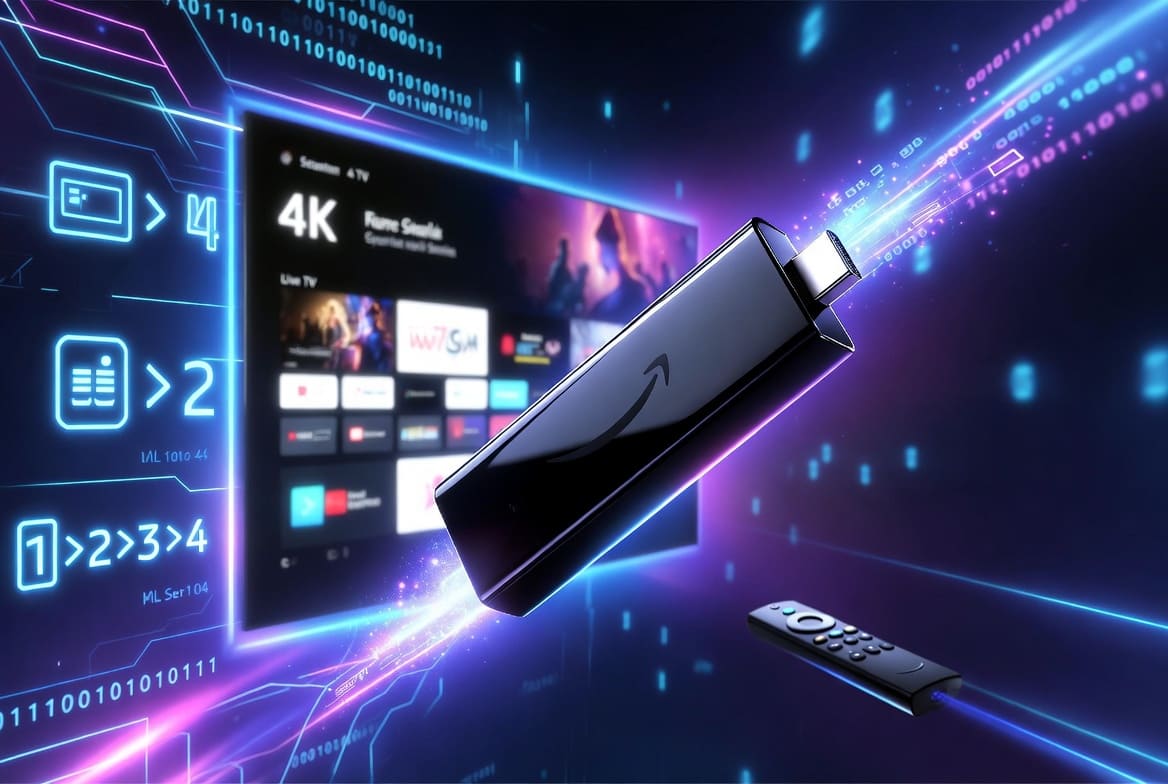
It runs Android under the hood, which means it supports almost every IPTV app available. If an great IPTV player exists, there’s a good chance it works on Firestick.
And unlike some smart TVs that are slow and clunky, the Firestick — especially the 4K Max — is genuinely fast. Your IPTV apps will load quickly and channels will switch without much delay.
So yeah, if you’ve got a Firestick sitting around, you’re already halfway there.
What You’ll Need Before We Start
Nothing complicated here. Just make sure you have these three things ready:
A Firestick (any model works)
The 4K or 4K Max are the best choices if you want crisp picture quality. But even the basic HD stick will handle most IPTV streams without any issues.
A decent internet connection
This matters more than anything else. A slow or unstable connection is the number one reason people have bad IPTV experiences. As a rough guide:
- HD channels: at least 10 Mbps
- Full HD (1080p): 20 Mbps or more
- 4K streams: 50 Mbps or more
If you’re not sure about your speed, just Google “internet speed test” and run a quick check.
An IPTV subscription
You’ll need an active subscription from a provider. When you sign up, you’ll receive either an M3U URL or Xtream Codes login details (a username, password, and server address). Keep these handy — you’ll need them in Step 4.
Step 1: Unlock Your Firestick for Third-Party Apps
Out of the box, your Firestick will only install apps from the Amazon App Store. Since most IPTV players aren’t listed there, the first thing we need to do is change one setting.
Don’t worry — this is completely safe and takes about 30 seconds:
- From your Fire TV home screen, go to Settings (the gear icon)
- Select My Fire TV
- Tap Developer Options
- Switch on Apps from Unknown Sources
- Confirm with Turn On when it asks
That’s it. Your Firestick can now install apps from outside the Amazon store.
Step 2: Download the “Downloader” App
This little app is your best friend. It lets you download and install any APK file (basically an app installer file) directly on your Firestick.
To get it:
- Go back to your home screen and open the search bar
- Type “Downloader”
- Look for the one made by AFTVnews — it has an orange icon
- Install it and open it
- When it asks for permission to install files, tap Allow
Simple. Now you’re ready to install your actual IPTV player.
Step 3: Pick an IPTV App — Here Are the Best Ones
There are quite a few IPTV apps out there, but honestly, most people end up with one of these four. Here’s a quick breakdown so you can pick the right one for you:
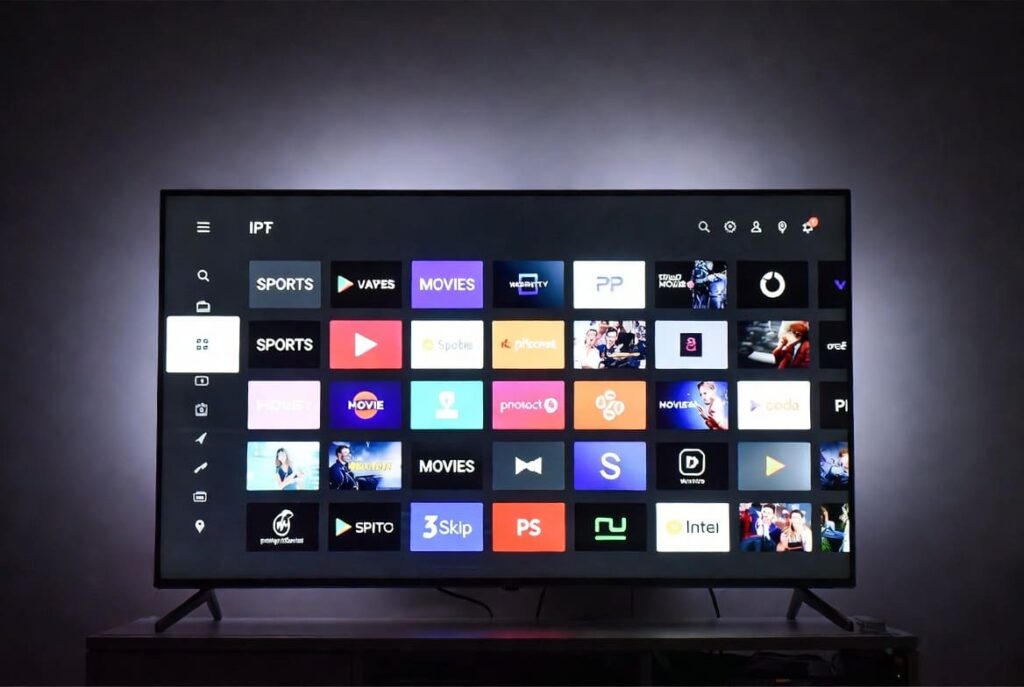
TiviMate — The Fan Favourite
If you ask any IPTV user which app they use, there’s a good chance they’ll say TiviMate. It looks great, runs smoothly, and the way it handles the EPG (TV guide) is just really well done.
The free version works fine, but the premium upgrade is only about $5 a year. Considering how much you’ll use it, that’s basically nothing.
Go with TiviMate if: You want the best overall experience and don’t mind spending a tiny bit.
IPTV Smarters Pro — Clean and Easy
IPTV Smarters is popular because it’s straightforward. You open it, enter your login details, and within a minute you’re watching channels. The interface is clean, it supports both M3U and Xtream Codes, and it shows you the EPG without any fuss.
Go with IPTV Smarters if: You’re new to IPTV and want something that just works without a learning curve.
GSE Smart IPTV — For the Tinkerers
GSE gives you more control than most apps. You can organise your channels however you want, set up multiple playlists, and really customise the experience. It takes a bit longer to set up, but once it’s done, it’s rock solid.
Go with GSE if: You like having full control over how everything is organised.
Perfect Player — Simple and Reliable
Perfect Player is the no-nonsense option. It’s not flashy, the design is pretty basic, but it’s been around for years and it just works. If you’ve had problems with other apps crashing or acting up, Perfect Player is worth trying.
Go with Perfect Player if: You’ve had issues with other apps and just want something stable.
Step 4: Install Your Chosen App
Let’s use TiviMate as our example, but the process is the same for any of the apps above.
- Open Downloader on your Firestick
- In the URL field, type the download address for your chosen IPTV app (search “[app name] APK download” on your phone to find the latest official link)
- Hit Go and let it download
- When the download finishes, tap Install
- Once installed, tap Open
The whole thing takes about two minutes.
Step 5: Connect Your IPTV Subscription
Now the good part. Open your IPTV app and look for an option to add a playlist or new account. What you do next depends on what your provider gave you:
If you have an M3U URL:
Choose “Add Playlist” → “M3U URL” → paste your link → save. Your channels will load automatically.
If you have Xtream Codes (username, password, server URL):
Choose “Add Account” → “Xtream Codes API” → enter your details → save.
Give it 30–60 seconds and your full channel list will appear. If your provider has given you thousands of channels, it might take a minute or two to load everything the first time.
Don’t Forget the EPG (Your TV Guide)
Without the EPG, you’re just staring at a list of channel names. With it, you can see exactly what’s on right now, what’s coming up, and browse the schedule for the whole week.
Your IPTV provider should give you an EPG URL when you sign up. To add it:
- TiviMate: Settings → Playlists → select your playlist → EPG URL → paste and save
- IPTV Smarters: Settings → EPG Settings → External EPG → paste your URL
Once it loads, your channels will show programme names, descriptions, and sometimes even artwork. It completely changes how the whole thing feels to use.
A Few Things That’ll Make Your Experience Way Better
These aren’t essential, but they genuinely make a difference:
Plug in with ethernet if you can. Wi-Fi is fine most of the time, but if you’re ever getting buffering on strong channels, a wired connection usually fixes it. You can get a Firestick ethernet adapter for a few dollars online.
Use a VPN. A good VPN stops your internet provider from seeing what you’re streaming and can actually improve speeds if your ISP throttles streaming traffic. ExpressVPN and NordVPN both have proper Fire TV apps.
Clear your app cache every week or two. Go to Settings → Applications → your IPTV app → Clear Cache. It takes 10 seconds and keeps things running smoothly.
Restart your stick once in a while. Just like your phone, the Firestick gets sluggish if you never restart it. A quick reboot every few days goes a long way.
When Things Go Wrong (And How to Fix Them)
Even with a great service, you’ll occasionally run into small issues. Here’s what to do:
Buffering and freezing: First check your internet speed. If that’s fine, try switching to a lower quality stream or a different server. Most providers offer multiple server options.
A channel won’t load: The stream link might have changed. Reach out to your provider and ask for an updated M3U link or refresh your Xtream Codes login.
App keeps crashing: Clear the cache and data, then restart the Firestick. If it keeps happening, uninstall and reinstall the app — that usually sorts it.
No EPG information showing: Check that your EPG URL is entered correctly. It’s easy to accidentally miss a character when typing it in.
Black screen on certain channels: This is usually a codec issue. Try a different IPTV app — TiviMate handles codec compatibility better than most.
Is This Actually Legal?
Fair question. Here’s the honest answer:
Using a Firestick is perfectly legal. Using IPTV technology is perfectly legal. Paying for a legitimate IPTV subscription from a proper provider — like Best IPTV Service — is also completely above board.
The grey area comes with free or unofficial IPTV services that stream content without the rights to do so. Avoid those, stick with a reputable paid provider, and you’re completely fine.
Why Our Service Works Great on Firestick
When you subscribe to Best IPTV Service, you get everything set up and ready to go:
- Your M3U URL and Xtream Codes login, ready to paste into any app
- An EPG URL included — no extra setup needed
- Streams in SD, HD, Full HD, and 4K depending on your plan
- Stable servers that stay up even during big live events
- A support team you can actually reach when you need help
- A free trial so you can test it on your Firestick before you pay a single penny
Setup takes about 10 minutes. After that, you’ve got live TV, sports, movies, and international channels — all on your big screen.
Wrapping Up
Setting up IPTV on a Firestick really isn’t as complicated as it might seem. Once you’ve done it once, the whole thing clicks and it’s incredibly easy to manage.
To recap what we covered:
- Enable apps from unknown sources in your Firestick settings
- Install the Downloader app
- Pick and install an IPTV player (TiviMate is our top pick)
- Add your subscription details
- Set up your EPG
- Start watching
If you’re still on the fence about whether it’s worth it, grab a free trial from us and see for yourself. There’s genuinely no risk — just plug in, set up, and see what IPTV on Firestick can do.
Got a question or ran into a problem during setup? Leave a comment below or contact our support team — we’re always happy to walk you through it.